
JPG / PNG / WebP → STL
Image to STL: turn a JPG or PNG into a 3D model
Upload a picture and AI builds a complete 3D object from it — front, sides and back — that you can download as an STL for 3D printing. Pick the size in millimetres; the file comes out upright, on the build plate and checked for holes.
Free account · 10 AI tokens once you confirm your email · no card needed
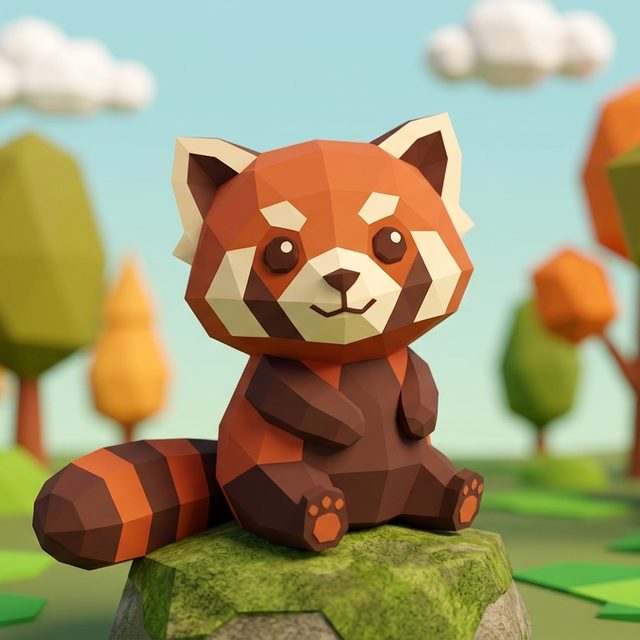
Your image
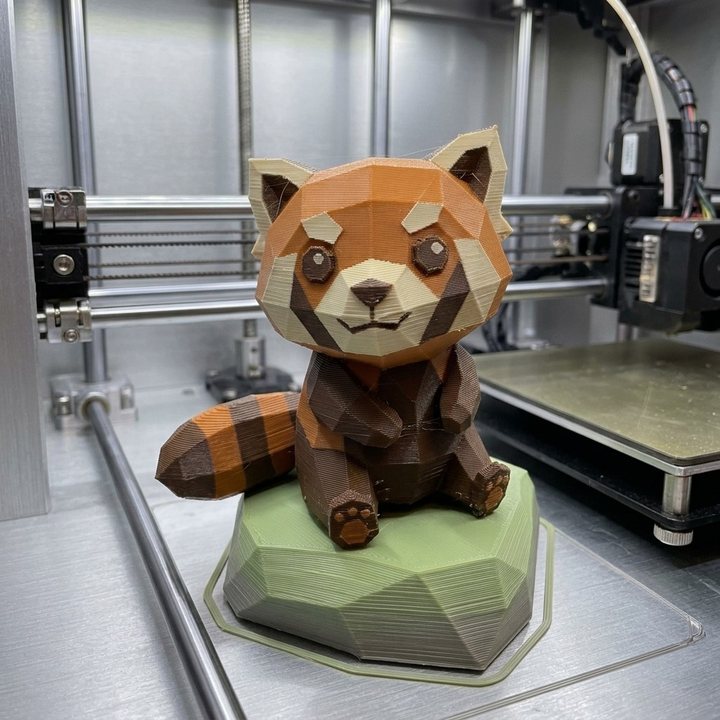
3D printed
How to convert an image to STL
- 1
Upload your image
Choose a JPG, PNG or WebP picture of one object. A clear photo, a product shot or a drawing with a plain background all work.
- 2
Let AI build the 3D model
In about a minute you get a textured 3D model you can spin around. Choose HD for the cleanest surfaces when you plan to print.
- 3
Download the STL
Open Download, choose STL for 3D printing and set the longest side in millimetres — or press Print in 3D to send it to a print service.
A full 3D model, not an embossed picture
Many image-to-STL converters turn a picture into a heightmap: a flat plate whose bumps follow the brightness of the image, like a lithophane or a relief. That's useful for signs and light panels, but it isn't a 3D version of the object in the photo.
nixi3d does something different: an AI model reconstructs the object itself, including the sides you can't see, so you get a real figure you can hold. If you need a lithophane, a dedicated lithophane tool is the better choice.
Tips for a clean STL
- One object per image — crop out other things in the scene
- Plain background — the AI separates the object more cleanly
- Whole object visible — nothing cut off by the edge of the frame
- HD quality — fewer artefacts and smoother surfaces for printing
STL settings that matter
- Units — the STL is written in millimetres, which every slicer expects
- Orientation — the model is turned Z-up and resting on the build plate
- Watertight check — nixi3d counts open edges and tells you if the surface has holes
- File type — binary STL, which is smaller than ASCII and universally supported
Other formats
The same model downloads as GLB (with colours and textures, for the web, AR and game engines) or OBJ. Already have a 3D file? The free converters turn GLB or OBJ into STL right in your browser.
Frequently asked questions
- Is it free?
- Yes, to start. A free account comes with 10 tokens once you confirm your email: a standard model costs 1 token and a high-detail model 5. Opening, editing, converting and exporting files is always free and needs no account.
- Which image formats can I use?
- JPG, PNG and WebP. iPhone HEIC photos need converting to JPG first; most phones can share a photo as JPG.
- Can it make a lithophane or a relief from my image?
- No. nixi3d makes a full 3D object from the picture. For a lithophane or a flat relief, use a dedicated lithophane generator.
- How long does it take?
- Usually under a minute for the 3D model. Exporting the STL is instant.
- Which 3D printers and slicers does the STL work with?
- All of them. The STL is a standard binary file in millimetres, standing upright (Z-up) on the build plate, so it opens directly in Cura, PrusaSlicer, Bambu Studio, OrcaSlicer, Chitubox, Lychee and the rest.
- Is my image kept private?
- Your image is sent to our AI provider only to build the model. The model is saved privately in your account and is never public unless you share it.
- How accurate is the model?
- AI reconstructs the object from what it can see, so it is excellent for figurines, toys, décor, keepsakes and props, and fills in hidden sides plausibly. It is not a measuring tool: for parts that must fit to the millimetre, use CAD software.
Turn your image into an STL now
Upload a JPG or PNG, get a 3D model in a minute, and download it ready for your slicer.